ControlCenter
Si vous avez des problèmes avec le ControlCenter (ou des idées pour l’améliorer) contactez-nous via le site web, dans des forums ou par e-mail. Les adresses sont dans le fichier LisezMoi de CTDP F1 2006. Si vous avez trouvé un bug veuillez faire un rapport aussi détaillé que possible (par exemple, l’OS que vous utilisez, quelle carte graphique vous avez, quel processeur, la version de CTDP F1 2006, les conditions d’apparition du bug, etc.)
Menu principal
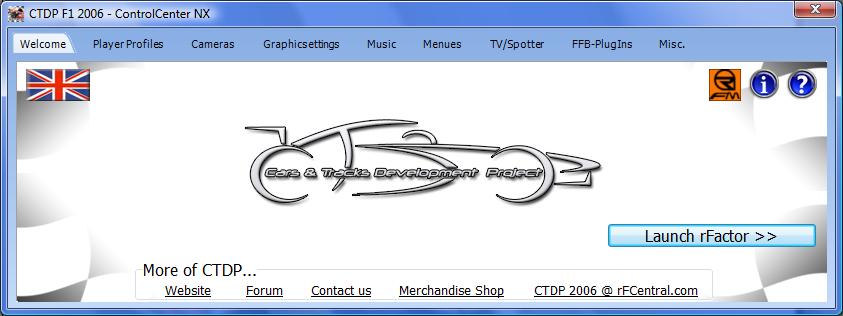
![Alt ControlCenter Main Window][cc_main]
- Choix de la langue pour le CC: Cliquez simplement sur le drapeau en haut à gauche, pour accéder à toutes les langues installées (liste au choix).
- Voir le manuel: Cliquez sur l’icône “?” pour ouvrir le manuel. Il ouvre le manuel en PDF dans la langue par défaut.
- Voir le fichier LisezMoi: Cliquez sur l’icône “i” pour voir le fichier LisezMoi.
- Lancer rFactor: Cliquez sur l’icône “Lancer rFactor”, une boite de dialogue apparait. (L’image de fond peut varier)
- “Lancer rFactor”: Lance rFactor avec vos paramètres choisis.
- “+fullproc”: Si vous avez un système Multi-core (plusieurs noyaux CPU), ceci vous permet d’utiliser rFactor avec tous les cœurs. Cela n’apporte pas grand chose (rFactor n’est pas vraiment optimisé pour), mais ça ne fait pas de mal non plus.
- “-trace=1000”: Si vous avez des plantages, démarrer rFactor, avec cette option, pour créer un fichier log “rFactor\UserData\LOG\”.
Le fichier s’appelle trace.txt.
“Start rFactor”: Starts the game with the selected settings. “+fullproc”: If you have more than 1 CPU core you can activate this parameter so rFactor uses the additional cores. “-trace=1000”: If you have trouble with rFactor you can let it create a log file so a solution can be found.
Player profiles
Here you can update your player profile with values that we think optimize your driving experience. You can also set the path to you telemetry software so that you can start it directly out of rFactor. If you want to know which values are changed you can click on “Which values will be changed?” If you don’t like the changes you can restore a backup (only if you have created one before the update).
Cameras
![Alt ControlCenter Cameras Tab][cc_cameras]
Everyone likes a different driving cam so you can select one here. CTDP F1 2006 comes with 3 different TV-Cockpit-Cams:
- Centered Cams: Camera is in a central position.
- Default Cams: Camera is a bit to the left of the central position.
- Realistic Cams: Camera is like the real F1 TV-Cam on the left side of the airbox.
To install a selected camera click on “Install Set”. We suggest to try the different cams so you can find the one that best fits your preference.
Graphic settings
![Alt ControlCenter Graphic Settings Tab][cc_graphics]
Level of Detail: Here you can set the Level of Detail. Lower it as needed if you do not have enough frames per second in rFactor with CTDP F1 2006. Tyre Textures: You can choose from four different tyre textures, ranging from brand new to very worn out. Grooved skid marks: Activate this box if you want to use alternative textures from F1Alive. Skidwall textures: Activate this box if you want to use alternative textures from Ace8.
Music
![Alt ControlCenter Music Tab][cc_music]
Do you want to hear you own music in the menus of rFactor? You can add tracks by clicking on “Add track(s)” or delete tracks by selecting them in the left box and clicking on “Delete selected track”.
Menu
Here you can switch between different menu-styles for CTDP F1 2006.
TV/Spotter
![Alt ControlCenter Plugins Tab][cc_plugins]
TODO, this is twice Here you can switch between different menu styles for CTDP F1 2006.
FFB-Plugins
![Alt ControlCenter FFB-Plugins Tab][cc_ffbplugins]
The RealFeel Plugin has no config-tool in its current version(Dec 2008) so you can active or deactivate it via the CC and save the optimal settings for CTDP F1 2006 in the “realfeelplugin.ini” file.
This wizard helps you find the optimal settings for the LeoFFB plugin. As it is a guided wizard, there is no need to get into detail in this manual.
Misc.
CTDP F1 2006 comes with 3 different sound-sets, so you can choose the one you prefer.
- F1 2006 Sounds by Michael Ode*: Complete new, team-based sounds by Michael Ode. * 2006 Sounds by FSONE Team*: The FSONE Team gave us permission to include their sounds as well, so you can choose them if you liked them already in FSONE 06/07. * CTDP 2005 & ISI-Sounds*: This sound-set base uses our 2005 sounds for the V10 Toro Rosso and the V8-sounds of the BM Sauber 2007 by ISI/CTDP.
If you want to drive the Safety Car, you must activate it here so you can select it in rFactor. Spyker/Midland: Here you can change the icon of the Spyker/Midland team. This is for all you people who want to be 100% accurate.
site info
 CTDP User Manual by Cars & Tracks Development Project is licensed under Creative Commons Attribution-Noncommercial-Share Alike 3.0 Deutschland license.